
SEO Basics & Strategy
19 Helpful Google Search Operators for Better Search Results


There are a number of Google search operators (search commands) that you can enter during your research for information on Google and other search engines. Some useful ones that not everyone knows are presented in this article.
Getting Started: Google Search Operators That Get the Most Out of Search
I don't need to explain how normal search works. But what if you want to make your search on Google more targeted and specific?
Determining Exact Search Results
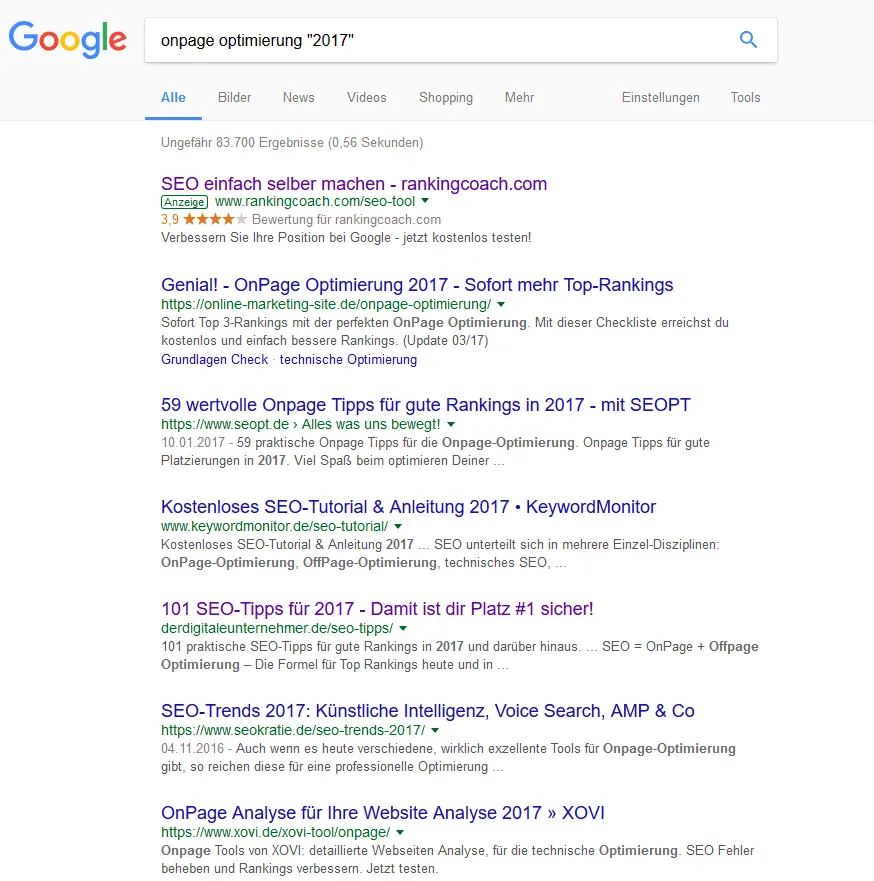
With quotation marks "" you can display search results that contain exactly the search term you have placed in quotation marks via the search command. For example, for onpage optimization "2017" you only get results shown with the addition “2017” displayed.
OR for Different Search Terms
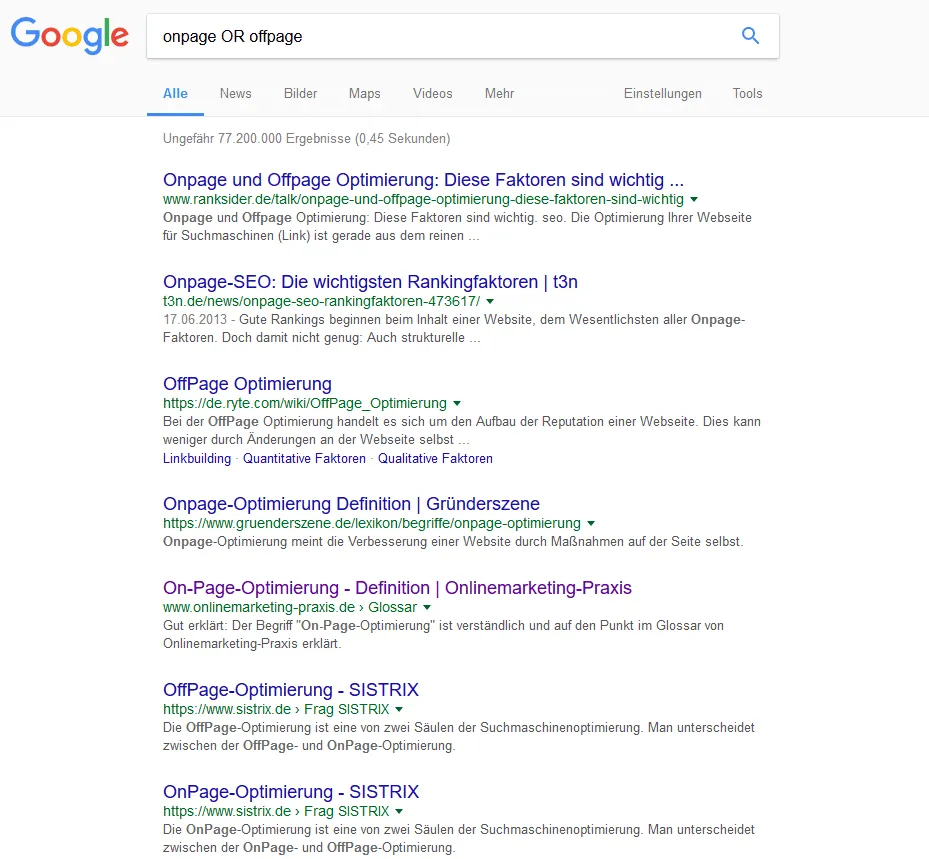
Can't decide on a single term for your search? Use "OR" to query different search terms at once.
With the search operator "OR" you can see in the illustration that results for both "Onpage" and "OffPage" are displayed here.
With a vertical bar you can likewise search for two different things at the same time, e.g. "spaghetti with sauce | without sauce".
Excluding Certain Terms From the Search With the Minus Sign
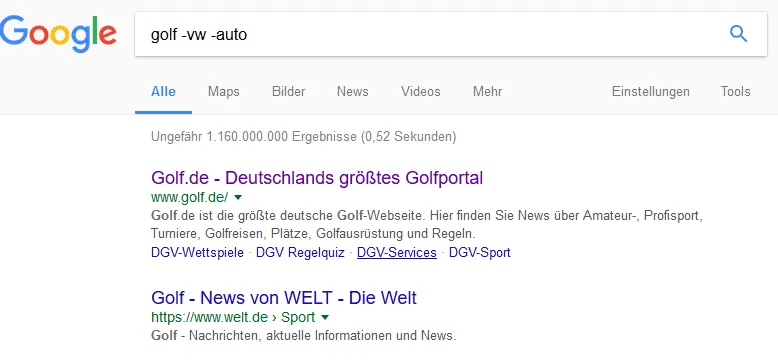
With the search operator "-" (minus) you can exclude certain terms from the search results. Example: If you're only looking for information about the sport of golf and not the car, you have to enter "golf -VW -car" in the search to exclude the vehicle.
Plus Sign
With the plus sign you can combine several terms to get more exact search results. This approach works well for an initial search for suitable blogs and forums in your niche, e.g. "blog + SEO" or "forum + SEO", or when searching for guest post opportunities: "guest post + SEO".
Using an Asterisk as a Gap Filler in Searches
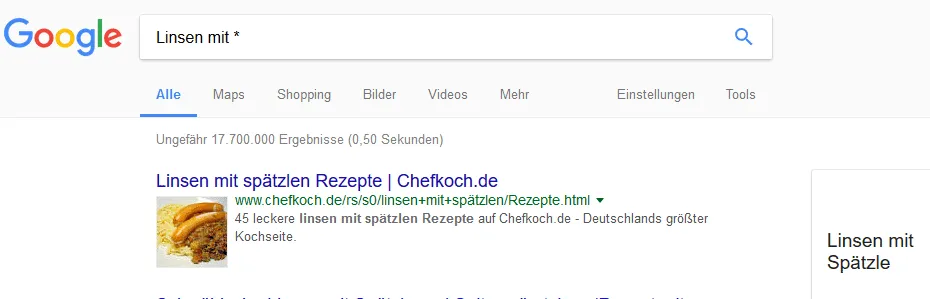
With "*" you can use a wildcard in the search when you're looking for terms that are not yet known to you, such as "lentils" with "*".
Advanced Google Search Operators
Thanks to the advanced search operators, you can research information via Google search in a more targeted and faster way.
You can also perform an initial SEO check with some operators, or carry out an SEO competitive analysis and find link sources.
Site Queries
With the site query you can search for various search terms, restricted to a specific website. To do so, use: "site:YourURL.com + YourKeyword".
For search engine optimization, this command is useful for seeing how the title and meta description of the individual subpages are displayed. To do so, enter "site:yoururl.com". With this query you can also see how many subpages have been indexed by Google.

Bonus: Site Queries for Social Media Platforms
Since the search functions of some social media platforms are not helpful, you can use Google search to specifically search for groups of people. Example: "site:https://de.linkedin.com/in/ blogger beauty germany" shows you beauty bloggers from Germany.
Site Queries With POSTS (Useful for Facebook and Co.)
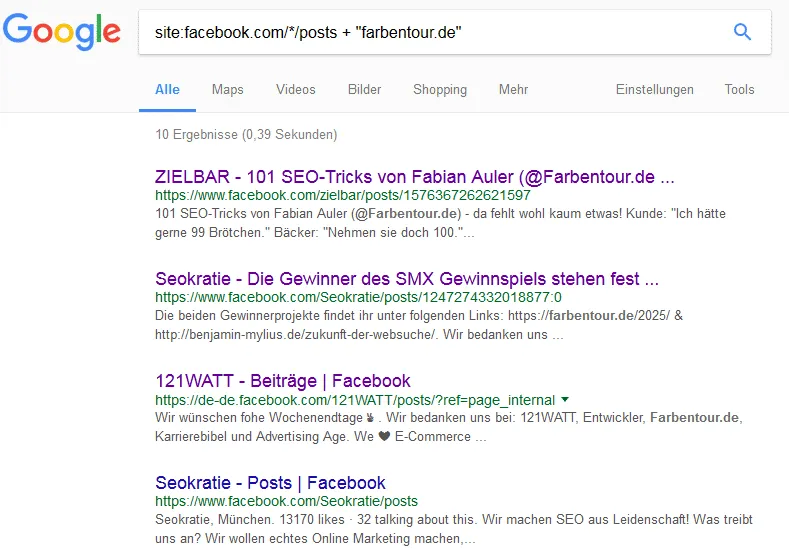
Facebook and other closed portals often don't have a really good search. With this command you can search such portals: "site:facebook.com/*/posts + YourKeyword".
(all)intext:
The "allintext:" command finds search terms in the texts of websites (page titles, addresses, etc. are not taken into account), e.g. "allintext:SEO Contest 2014". Allintext here means that, as far as possible, only search results are displayed that contain all of the keywords you specified.
Using the "intext:" operator, you start a search query for results whose texts contain one of the terms. If you place "intext:" before each term, this has the same effect as the search operator "allintext:".
There are a few more "allin…" and "in…" operators, which are briefly presented in the following.
(all)intitle:
With "allintitle:YourKeyword", pages with the corresponding keyword in the title are displayed, e.g. "allintitle:technical SEO 2018".
With the search operator "intitle:YourKeyword" you are likewise shown results in which the title contains the keyword. If you use several keywords ("intitle:moon cake pizza"), titles are searched that use at least one of these keywords. You can also place your keyword first and only then the search operator, in order to get even more targeted results, e.g. "universe intitle:moon". Writing "intitle:" before each search term has the same effect as "allintitle".
(all)inurl:
This command searches for the specified search terms in the search results of the URLs. You can, for example, search for "inurl:seo inurl:2015" or "allinurl:seo 2015" to find search results with the corresponding keywords in the URL.
(all)inanchor: Scan for Backlinks With Link Texts
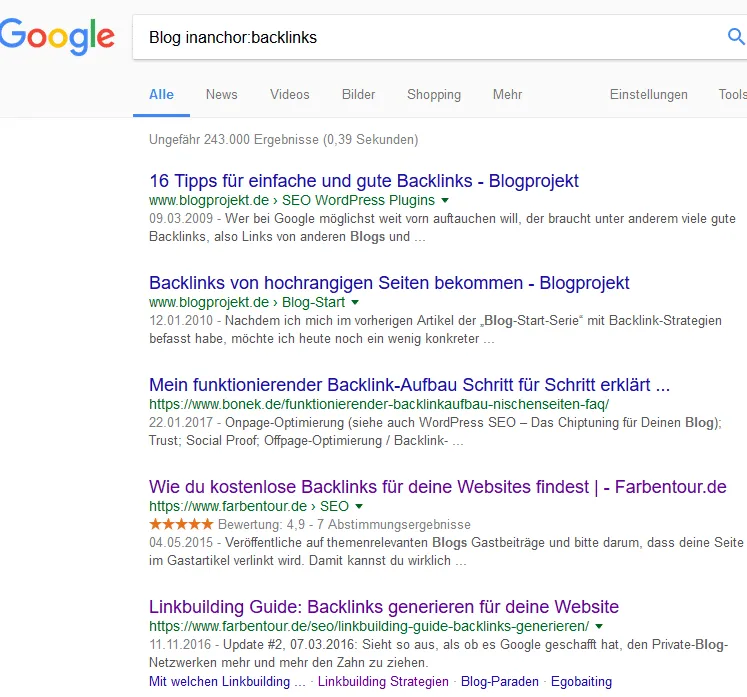
"Allinanchor" or "inanchor" finds web pages that have been linked with your searched keyword, e.g. "blog inanchor:backlinks" finds search results that contain the term "blog" and on which backlinks with the link text "backlinks" point.
Search Operator related:
With the operator "related" you can display pages that are similar to the website you specified (example: "related:www.xing.com").
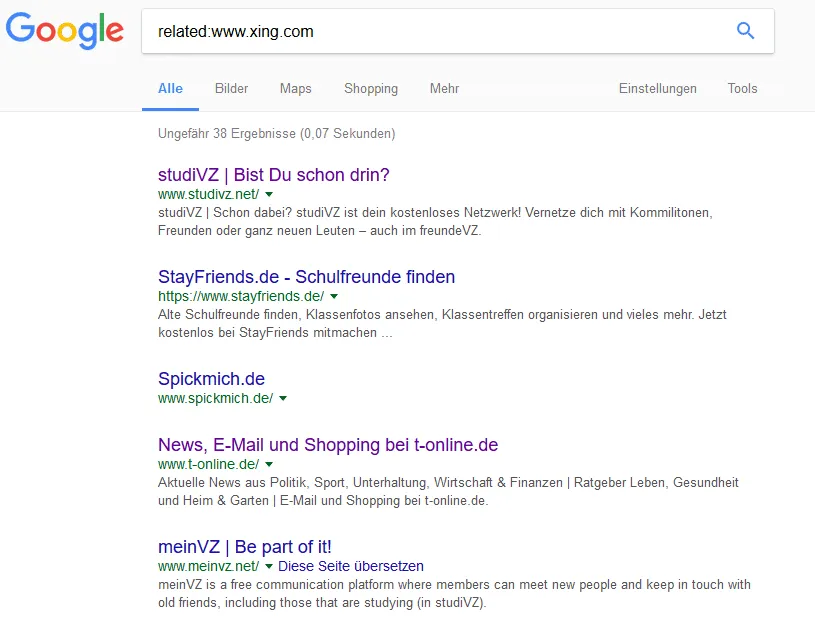
Admittedly – the search operator "related" doesn't always display optimal results. Here's an example with Xing.com, where studivz and other slightly unsuitable pages are shown as "similar". Linkedin would probably have been more fitting.
AROUND(n): Search for Words With a Defined Distance
With the operator AROUND(n) you find pages on which two terms are at most n words apart.
Example: "seo AROUND(5) audit" shows pages on which "seo" and "audit" appear at most five words apart. AROUND(n) is today's Google variant of the classic NEAR operator (NEAR and FAR are not officially supported by Google itself).
filetype: Search for Specific File Formats
With this search operator, limit the results to specific formats, example: "content promotion and distribution filetype:pdf" only finds documents that contain these keywords in PDF formats. With the addition "OR (|)" you can also search for several documents at the same time, such as "search engine optimization filetype:doc | filetype:pdf".
after: and before: Filter Search Results by Date
If you only need fresh or deliberately older hits, the operators "after:" and "before:" are useful. Both work with the date format YYYY-MM-DD or simply YYYY.
Examples:
- "seo trends after:2026-01-01" only shows hits from January 2026 onward.
- "core web vitals before:2023" hides everything after 2022.
- "helpful content update after:2024-03-01 before:2024-12-31" searches within a time window.
Practical for current research, trend comparisons, or finding original sources before the topic was widely picked up.
#hashtag and @username: Social Mentions in Google Search
With "#hashtag" you can search for hits that contain a specific hashtag – e.g. "#seoaudit". With "@username" you get profiles and mentions of a person, e.g. "@dannysullivan".
Neither operator provides complete social media searches, but they are helpful as a quick query to see where a term or a person appears outside of pure website hits.
define: Search for Definitions
With "define:" you can search exclusively for definitions of your keyword: "define:seo" shows various definitions of SEO.
ip: IP Operator on Bing
Even though only Google search operators have been presented here, there is also a reason to use Bing here for once. On this search engine you can find out other domains with the same IP address. It can be interesting and useful to see which websites share an IP and are located on the same web server. To do so, enter "ip:THE IP ADDRESS HERE" in the search bar. How can you find out the IP address? There are countless tools on the internet that let you display the IP addresses of a website. You now know a few (Google) search operators for quickly searching for relevant content ;-).
In Practice: Site Query for SEO Audits
The "site:" operator is the most important search command for daily SEO work. Three applications that constantly recur in an audit:
- Indexing Check
"site:yourdomain.com" roughly shows you how many pages Google has in the index. Does this number roughly match the number of your relevant URLs? Are there significantly more (e.g. because filter URLs or tag pages are indexed)? Are there significantly fewer (indexing problem)? Here you'll find the first clues for an on-page analysis.
- Check Content Clusters and Topic Gaps
"site:yourdomain.com keyword" shows you all pages on which a certain topic appears. This is how you find out whether your topic cluster is really covered – or whether you only have one page on the topic where you actually need several.
- Track Down Duplicate Content
Suspect duplicate content? Copy a distinctive sentence from one of your texts in quotation marks and combine it with the site: query – once for your own domain, once globally without "site:". This is how you see whether the text is internally duplicated or was copied externally.
Bonus combo for competitive analysis: "site:competitor.com topickeyword" shows you how a competitor structurally sets up the topic and which URL it lets rank for it.
Search Operators and AI Answers
With AI Overviews and AI summaries (AI Mode) in Google search, the behavior of the search operators also changes. When AI answers are displayed at the top, Google partly ignores some operators or interprets them more loosely.
What often happens when AI answers are enabled:
- Quotation marks are interpreted more loosely – exact phrases are no longer guaranteed.
- "site:" queries occasionally show AI notes that do not relate to the queried domain.
- Date filters ("after:", "before:") are usually still respected cleanly.
For strictly deterministic SEO research, incognito mode with personalization disabled helps. Alternatively, turn off the AI answers in the search settings, if available.
You'll find a complete list of the search operators officially supported by Google in the Google Help: https://support.google.com/websearch/answer/2466433
Good luck with your search.
-Fabian
Need a GEO check?
Get in touch for more visibility – in search engines and AI answers.
- More visibility and leads via Google and AI chats
- Sustainable SEO & GEO strategies
- Personal support


